Showing posts with label Android. Show all posts

Jun 26, 2016

Google recently has deprecated the Google+ Sign in and process of obtaining oauth access tokens viaGoogleAuthUtil.getToken API. Now, they reccomend a single entry point via new Google Sign-In API. The major reasons for doing so are 1. It enhances user experience and 2. It improves security, more here. Also starting with android 6.0, the GET_ACCOUNTS permission has to be requested at runtime and if you implement this API, it eliminates the need for requiring this permission.
The feature that is really exciting is that it introduces new silentSignIn API, which allows for cross device silent sign in (essentially if a user has signed into your application on another platform, he won't be shown the sign in prompt) provided that the requested scopes are same, so this improves the user experience. In addition, you don't have to use the GoogleAuthUtil.getToken API to obtain the tokens as they are granted on the initial sign-in.
So if you have an android application in which you had previously implemented the Google+ sign in and used other Google plus features and want to migrate your android applications to new Google Sign in implementation, this post explains how to do so. Depending upon whether you choose to automate the lifecycle for GoogleAPIClient (Use enableAutoManage, this approach is recommended as it avoids boilerplate code) or manage the lifecycle for GoogleAPIClient by implementing the ConnectionCallbacks interface, the code might slightly differ. But, as the latter approach requires a bit more code, I will explain the process using it.

What needs to be changed

  • Replace mGoogleApiClient.connect() with mGoogleApiClient.connect(GoogleApiClient.SIGN_IN_MODE_OPTIONAL), this is basically required to allow the client to transition between authenticated and unauthenticated states and for use with GoogleSignInApi.
  • Build a GoogleSignInOptions instance. While building the instance, request the additional scopes via requestScopes method,( this is where you can request scopes such as SCOPE_PLUS_LOGIN andSCOPE_PLUS_PROFILE). Also, if you need to authenticate the user with the backend and want to obtain the authorization token to access the API's using your backend use requestIdToken(serverToken) andrequestServerAuthCode(serverToken) methods. Here unlike Google plus sign in the serverToken is just the clientId of the web application.
  • Build the GoogleApiClient instance, use the addApi method to add the Auth.GOOGLE_SIGN_IN_API andPlus.API.
  • In the onStart method connect the client usingmGoogleApiClient.connect(GoogleApiClient.SIGN_IN_MODE_OPTIONAL) and in onStop method disconnect the client. (You may do this in onResume and onPause methods also).
  • After the client is connected, first attempt the silentSignIn and if it fails with code SIGN_IN_REQUIRED, attempt to do a fresh sign in for the user.
  • After the sign in is completed, then you can invoke the Plus.PeopleApi with user accountId to obtain users google profile information.
  • To Sign out the user use Auth.GoogleSignInApi.signOut method and to revoke access useAuth.GoogleSignInApi.revokeAccess method.
  • Remove the android.permission.GET_ACCOUNTS permission from android manifest.

Here's the relevant code.


 @Override
  protected void onCreate(Bundle savedInstanceState) {
  ..
  //Here unlike Google plus sign in the serverToken is just the clientId of the web application
  GoogleSignInOptions gso = new GoogleSignInOptions.Builder(GoogleSignInOptions.DEFAULT_SIGN_IN)
          .requestIdToken(serverToken).requestServerAuthCode(serverToken).
                  requestEmail().
                  requestScopes(Plus.SCOPE_PLUS_LOGIN, Plus.SCOPE_PLUS_PROFILE)
          .build();
  mGoogleApiClient = new GoogleApiClient.Builder(this)
          .addConnectionCallbacks(this)
          .addOnConnectionFailedListener(this).
                  addApi(Auth.GOOGLE_SIGN_IN_API, gso).
                  addApi(Plus.API)
          .build();
  }

  protected void onResume() {

      super.onResume();

      //Here isConnected is just a flag that checks whether user is connected to internet.
      /**To avoid execution of this block you can check whether user previously signedIn on this device by storing a userIdToken and checking whether user needs to be signedIn automatically or not. */
      if (!mGoogleApiClient.isConnecting() && !mGoogleApiClient.isConnected() && isConnected) {
              mGoogleApiClient.connect(GoogleApiClient.SIGN_IN_MODE_OPTIONAL);
          } //Here isSignedIn is a boolean flag that tracks whether the user is signedIn or not.
          else if(isConnected&&mGoogleApiClient.isConnected()&&!isSignedIn){
              signInUsingNewAPI();
          }

  }
  private void signInUsingNewAPI() {
    if (!isSignedIn&&isConnected) {
               attemptSilentSignIn();

           }
  }

  private void attemptSilentSignIn(){
      OptionalPendingResult<GoogleSignInResult> opr = Auth.GoogleSignInApi.silentSignIn(mGoogleApiClient);
      if (opr.isDone()) {
          // If the user's cached credentials are valid, the OptionalPendingResult will be "done"
          // and the GoogleSignInResult will be available instantly.
          Log.d(TAG, "Got cached sign-in");
          GoogleSignInResult result = opr.get();
          handleSignInResult(result);
      } else {
          // If the user has not previously signed in on this device or the sign-in has expired,
          // this asynchronous branch will attempt to sign in the user silently.  Cross-device
          // single sign-on will occur in this branch.
          showProgressDialog();
          opr.setResultCallback(new ResultCallback<GoogleSignInResult>() {
              @Override
              public void onResult(GoogleSignInResult googleSignInResult) {
                  hideProgressDialog();
                  handleSignInResult(googleSignInResult);
              }
          });
      }
  }

  private void handleSignInResult(GoogleSignInResult result){
    if (!result.getStatus().isSuccess()) {
          isSignedIn = false;
          mIntentInProgress = false;
          if(result.getStatus().hasResolution()||result.getStatus().getStatusCode()== CommonStatusCodes.SIGN_IN_REQUIRED){
                freshSignIn(); //Rather than using startResolutionForResult, we invoke our method which attempts to do a fresh sign in and if there is error it is handled in onActivityResult method.
              }

      }
      else {
        mIntentInProgress = false;
        isSignedIn = true;
        final GoogleSignInAccount account = result.getSignInAccount();
        //Maybe save this result.
        SharedPreferences.Editor editor = preferences.edit();
        editor.putString("client_id_token", account.getIdToken());
        editor.putString("auth_code",account.getServerAuthCode());
        editor.apply();
        //You can pass these credentials to your server from here.
        //Invoke the GPlus People API
        Plus.PeopleApi.load(mGoogleApiClient, account.getId()).setResultCallback(new ResultCallback<People.LoadPeopleResult>() {
                  @Override
                  public void onResult(@NonNull People.LoadPeopleResult loadPeopleResult) {
                      Person person = loadPeopleResult.getPersonBuffer().get(0);
                      //Method that obtains the userInfo
                      getProfileInfo(person, account.getEmail());
                  }
              });

      }

  }
  private void freshSignIn(){
      Intent signInIntent = Auth.GoogleSignInApi.getSignInIntent(mGoogleApiClient);
      showProgressDialog();
      startActivityForResult(signInIntent, RC_SIGN_IN);
  }
  @Override
  protected void onActivityResult(int requestCode, int responseCode,
                                  Intent intent) {

      if(requestCode==RC_RESOLVE_ERROR){
          mIntentInProgress = false;
          if (responseCode != RESULT_OK) {
             isSignedIn = false;
             //Maybe show a dialog to user ?
             return;
        }
        //Attemp connection again.
        if (!mGoogleApiClient.isConnecting()) {
              mGoogleApiClient.connect();
          }
        }
        else if (requestCode == RC_SIGN_IN) {
          hideProgressDialog();
          GoogleSignInResult result = Auth.GoogleSignInApi.getSignInResultFromIntent(intent);
          handleSignInResult(result,false);
      }
    }
  // Connection callbacks
  @Override
  public void onConnected(Bundle bundle) {
      if(!isSignedIn) {
          signInUsingNewAPI();
      }
  }

  @Override
  public void onConnectionSuspended(int i) {
    isSignedIn = false;
    if (!isSignedIn&&isConnected) {
    mGoogleApiClient.connect(GoogleApiClient.SIGN_IN_MODE_OPTIONAL);
  }
  }
  @Override
  public void onConnectionFailed(ConnectionResult result) {

      if (!result.hasResolution()) {
          GoogleApiAvailability.getInstance().getErrorDialog(
                  this, result.getErrorCode(), RC_SIGN_IN).show();
          return;
      }

      if (!mIntentInProgress) {
          // Store the ConnectionResult for later usage
          mConnectionResult = result;

          if (!isSignedIn) {
              // The user has already clicked 'sign-in' so we attempt to
              // resolve all
              // errors until the user is signed in, or they cancel.
              resolveSignInError();
          }
      }
  }
/**
 * Method to resolve any signin errors
 */
private void resolveSignInError() {
    if (mConnectionResult.hasResolution()) {
        try {
            mIntentInProgress = true;
            mConnectionResult.startResolutionForResult(this, RC_RESOLVE_ERROR);
        } catch (IntentSender.SendIntentException e) {
            mIntentInProgress = false;
            mGoogleApiClient.connect(GoogleApiClient.SIGN_IN_MODE_OPTIONAL);
        }
    }
}

//Sign out and revoke methods
/**
  * Sign-out from google
  */
 public void signOutFromGoogle() {

     if (mGoogleApiClient.isConnected()) {
         Auth.GoogleSignInApi.signOut(mGoogleApiClient).setResultCallback(
                 new ResultCallback<Status>() {
                     @Override
                     public void onResult(Status status) {
                       isSignedIn = false;
                       //do other stuff here.
                       mGoogleApiClient.disconnect();
                       //Builds a fresh instance of GoogleApiClient
                       buildGoogleApiClient();
                     }
             });
  }
  }

  /**
   * Revoking access from google
   */
  public void revokeGplusAccess() {
      if (mGoogleApiClient.isConnected()) {
          Auth.GoogleSignInApi.revokeAccess(mGoogleApiClient).setResultCallback(
                  new ResultCallback<Status>() {
                      @Override
                      public void onResult(Status status) {
                        isSignedIn = false;
                        //do other stuff here.
                        mGoogleApiClient.disconnect();
                        //Builds a fresh instance of GoogleApiClient
                        buildGoogleApiClient();
                        //You can inform your server of this change
                    }
               });

   }
   }
 //Other utility methods
 private void hideProgressDialog() {
     if (mProgressDialog != null && mProgressDialog.isShowing()) {
         mProgressDialog.hide();
     }
 }

 private void showProgressDialog() {
  if (mProgressDialog == null) {
      mProgressDialog = new ProgressDialog(this);
      mProgressDialog.setMessage("Signing In");
      mProgressDialog.setIndeterminate(true);
  }

  mProgressDialog.show();
 }
Hope this code is helpful in helping you move to the new Google sign in implementation.
app_google_sign_in_image

Posted on Sunday, June 26, 2016 by Unknown

Apr 10, 2015

In this post I will share an example of analyzing memory leak in an Android application. I recently tried to integrate a popular android library ShowcaseView which can be used for first run demos in your android application. The thing is while testing the library, I noticed severe memory leaks. This was occurring because references to ShowcaseView class were being kept. And, as bitmaps are created internally by this class to overlay the content, so each instance was holding a large chunk of memory.

Analyzing the issue 

For heap analysis, I used VisualVM. First, thing you need to realize is that the heap dump taken from android cannot be directly analyzed with VisualVM or other tools such as eclipse MAT. You need to convert it to a format that these tools can analyze. For this you have to run the following command.

hprof-conv Snapshot_2015.04.10_19.37.29.hprof heapissue


Here the first parameter is the android heap dump and the second is the output file.


After loading the file into VisualVM for analysis, I could see the references of ShowCaseView class were being retained as it had GC roots, thus live references, which meant that the instances could not be collected by the JVM Garbage collector.


heap_issue_1


Simple OQL analysis revealed live paths to the instances.


Query:


select  heap.livepaths(u,false) from com.github.amlcurran.showcaseview.ShowcaseView u 


heap_issue_2


As you can see phone decor view was holding references to the view which was added by ShowCaseView.  Thus, the decorview was holding reference to ShowCaseView instances.


Now, Ideally whenever the view has been displayed it should be destroyed, especially,  if it is holding such large chunks of memory.  but, instead due to oversight from the developer instead of removing the view from decorview, he was just setting the views property to View.Gone, which only makes the view invisible and does not remove the view from the ViewGroup. 


The Solution


The problem was then clearly with the fact that the added views should be removed after the ShowcaseView was hidden.  So, I just modified the hide() and hideImmediate() methods to remove the views that were added on top of the decorView.


I have mentioned one of those method below.


@Override
public void hide() {
clearBitmap();
// If the type is set to one-shot, store that it has shot
shotStateStore.storeShot();
mEventListener.onShowcaseViewHide(this);
fadeOutShowcase();
getViewTreeObserver().removeOnPreDrawListener(draw);
if(Build.VERSION.SDK_INT>15){
getViewTreeObserver().removeOnGlobalLayoutListener(globalLayout);
}
else {
getViewTreeObserver().removeGlobalOnLayoutListener(globalLayout);
}
// removeView(ShowcaseView.this);
((ViewGroup)mActivity.getWindow().getDecorView()).removeView(ShowcaseView.this);
}


Post, implementing these changes the library works as it is supposed to work, that is just fine. 


heap_issue_fine_1


heap_issue_fine_2


showcaseview


Below, I have mentioned the Gist that contains the entire source code for the modified ShowcaseView. So, happy coding :-)


Posted on Friday, April 10, 2015 by Unknown

Mar 21, 2015

If you use ProGuard for obfuscating your code and happen to use Retrofit in your application, you will need to configure ProGuard to exclude certain Retrofit files from being obfuscated. Also you must note that if you are using GSON for conversion from JSON to POJO representation, you must ignore those POJO classes from being obfuscated, this is required as if those POJO class  field names are obfuscated, conversion to POJO’s from JSON would fail because POJO  field names are inferred from JSON response.   So to keep it brief you should use the following configuration.

-keep class com.squareup.** { *; }
-keep interface com.squareup.** { *; }
-dontwarn com.squareup.okhttp.**
-keep class retrofit.** { *; }

-keepclasseswithmembers class * {
@retrofit.http.* <methods>;
}

-keep interface retrofit.** { *;}
-keep interface com.squareup.** { *; }
-dontwarn rx.**
-dontwarn retrofit.**


#Here include the POJO's that have you have created for mapping JSON response to POJO for example
com.blogspot.ramannanda.apps.xyz.FeedlyResponse {*;}


Here FeedlyResponse is just a POJO class that maps to JSON fields returned by Feedly feed search API.

Posted on Saturday, March 21, 2015 by Unknown

Mar 4, 2015

I recently reviewed this title and found it short on a few important consideration such as cross client authorization. This is definitely a book for developers who are beginning android application development, but isn’t comprehensive.

I discuss about what each chapter covers and then offer suggestions later on how this book can be improved further.

Chapter 1: Android Security Issues

  1. Talks about the different security compliance standards 
  2. What are the common problems in android applications
  3. How one can easily re-engineer your applications code.

Chapter 2: Protecting your code
Here the author talks about why you should obfuscate your code. It starts by explaining how easy it is to re-engineer the code, if the code is not obfuscated. Obfuscation tools are then covered to show how to obfuscate your applications code. The author then talks about disassemblers to show that even though obfuscation might deter someone from looking at your code, It might not truly prevent someone from hacking your application code.

Chapter 3: Authentication
Here the author talks about different authentication schemes username/password, facebook login etc.

Chapter 4: Network communication
Talks about asymmetric public key encryption, Why you should use SSL security and demonstrates the Man in the middle attack. It also explains why your application should validate ssl certificates.

Chapter 5: Databases
Talks about general database best practices such as encryption and preventing SQL injection.

Chapter 6: Web Server Attacks
Talks about securing web services, XSS attack etc. Here, I feel the author should have covered authentication and authorization challenges that one usually faces with android applications, as one generally needs to implement validations of requests from mobile devices. For example, A user can easily know your service endpoint as the code is deployed on the client side and send a request to that URL from their application as well, So you need to differentiate between the request from your application and other applications.  (I personally use Google plus sign in API's, along with server side token validation to ensure that any back-end requests are originating from within my application and are from the correct individual)

Chapter 7: Third party library integration
Mentions that you should be aware of the permissions that you are granting to the third party libraries.

Chapter 8:Device Security
Talks about device security issues and why you should enable encryption. It then talks about how device security is enforced on Kitkat. The author then discusses some android version specific exploits and offers certain solutions.

Chapter 9: The Future
This chapter covers Intent hijacking and how to deal with it in your android application. The chapter then covers devices such as android wear and the extended ecosystem of android devices and its impact on security considerations. Furthermore, the chapter covers tools which expose security vulnerability in your application.

Conclusions:
The book covers a lot of common security vulnerabilities that developers expose while writing the android applications and has a lucid prose and demonstrates these vulnerabilities practically by showing examples. It also offers solutions to those problems. For a developer who is beginning application development with android, having knowledge about these issues is important.  However, most of these issues would be known to experienced developers. I feel the detailed coverage of topics such as securing back-end services unobtrusively, OAuth, OWSM,  etc could have added value to the book. Maybe its just me but I expect these topics to be covered in detail, as most of the android applications would be using some form of back-end service to offload heavy processing. I rate it 3.5 for the content it has covered. 

Posted on Wednesday, March 04, 2015 by Unknown

Jan 15, 2015

In the past few weeks, I had been working on an android application, for reading feed articles, there were quite a few takeaways from that experience and I am just sharing few of those, along with the link and features to the application. 

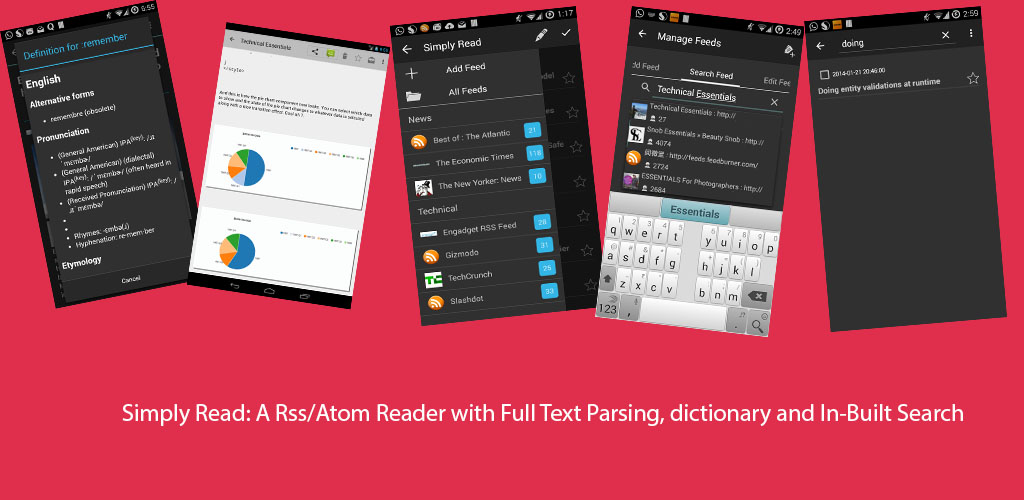
The app can be downloaded from the link: Simply Read on Play Store

Takeaways: -

  • Parsing is slow: As I had to design full text content scraper and parser for enabling the user to view the full content of articles, I soon realized the multiple iterations of parsing and scraping can be painfully slow.  The same thing that would execute in sub-second on local machine would take 30-40 seconds on an android device, which is unbearable for an end user.  Considering that my device was pretty fast, this could be attributed to performance snags with the standard java API implementation by Google.  Solution: Move the parsing code to the server, but provide the user an option to use the parser within the app,  create a rest service which returns the parsed article. can_encode_drill_down  can_encode_slow
  • Authenticating user requests:  This is an interlinked problem to the first one, when I had to move the parsing code to the server side, I needed to ensure that only authenticated user with the application send the parsing requests as I just could not allow everyone to query the backend and retrieve the parsed article.  Solution: Use Google+ sign in with server side validation of the client oauth tokens, this ensured that the requests originated from my application on an android device and the user was authenticated before making a parse request.
  • Not Using Content providers, So Managing Data Refresh: I chose not to use content providers and instead chose to go with the native API’s for fetching data from the SQLite database and doing the updates. The obvious problem that arises is to manage data refresh across different activities. Solution: I used otto coupled with the loaders to manage data refresh across activities. Using Otto ensured loose coupling of components.
  • ProGuard and Retrofit don’t gel well together:  There are quite a few standard exclusion rules that you would have to write to get retrofit to work with ProGuard.  Just make sure also to exclude classes and attributes that you are going to use with GSON to convert JSON to Object representation.  Here’s a snippet of the rules.
    -keepattributes Signature
    -keepattributes *Annotation*
    -keep interface com.squareup.** { *; }
    -dontwarn rx.**
    -dontwarn retrofit.**
    -keep class com.squareup.** { *; }
    -keep class retrofit.** { *; }

    -keepclasseswithmembers class * {
    @retrofit.http.* <methods>;
    }

    //now exclude the response classes and Pojo's
    -keep class com.blogspot.ramannanda.apps.simplyread.model.rest.SampleResponse {*;}


Although there are a lot of other takeaways. I am going to keep this brief and look forward to hearing your feedback about the app.


Posted on Thursday, January 15, 2015 by Unknown

Dec 12, 2014

ListView is probably the most common android component, but it has to be implemented correctly to provide a  better user experience.

In this post, I will give a few suggestions on how you can achieve the near optimum list performance.  They are mentioned below:

  1. Access Data Incrementally:- Load only the data you need. I know this is a general principle to reduce memory footprint of your application, but even so, this can and must be done.  The ListView class can listen for scroll updates, you can implement the OnScrollListener interface to do so.  When the user scrolls to the bottom of the list, then load the incremental data. This can be done independent of the data source, whether it be a REST web service or the SQLite database. In this post, I am going to show you how you can handle this when your view is backed by the data from the database.  Take a look at this abstract class Endless Scroll Listener which implements the OnScrollListener. To integrate this with your data source and ListView all you  have to do is extend from this class as shown below.
      // The listener implementation
    listener= new EndlessScrollListener() {
    @Override
    public void onLoadMore(int page, int totalItemsCount) {
    // Triggered only when new data needs to be appended to the list
    // Add whatever code is needed to append new items to your AdapterView
    customLoadMoreDataFromApi(page);
    // or customLoadMoreDataFromApi(totalItemsCount);
    }
    private void customLoadMoreDataFromApi(int page) {
    //Progress dialog to show with loading text
    pd.setTitle(R.string.loadingText);
    pd.show();
    Bundle arg = new Bundle();
    //here pageSize is a constant
    //How many records to fetch
    limit = pageSize;
    //From which offset
    offset = (page - 1) * pageSize;
    //add these to the parameters that will be passed to the loader
    arg.putInt("limit", limit);
    arg.putInt("offset", offset);
    //add custom arguments

    //Instantiate or restart the loader
    Loader loader = getActivity().getSupportLoaderManager().getLoader(LOADER_ID);
    if (loader != null && !loader.isReset()) {
    getActivity().getSupportLoaderManager().restartLoader(LOADER_ID, arg, _self);
    } else {
    getActivity().getSupportLoaderManager().initLoader(LOADER_ID, arg, _self);
    }
    }
    };
    //set on scroll listener for the listview
    lstView.setOnScrollListener(listener);

    SQLite provides limit and offset clause, so when the user scrolls downwards, we restart the loader with the new offset parameter. Below I have mentioned the methods involved in loader callback implementations.

    @Override
    public Loader<Object> onCreateLoader(int id, Bundle args) {
    Loader loader= new SimpleAbstractListLoader(getActivity().getApplicationContext(),id,args);
    return loader;
    }
    @Override
    public void onLoadFinished(Loader<Object> arg0,
    Object arg1) {
    //here article list is an array list that contains the data
    //if it is initial just create a new list else append the data to the existing list
    if(articleList==null||adapter==null){
    //FeedArticleSummary is a POJO class
    articleList=new ArrayList<FeedArticleSummary>();
    articleList.addAll((ArrayList<FeedArticleSummary>) arg1);
    //Custom Adapter for the listview that extends the ArrayAdapter
    adapter = new ArticleListAdapter(this.getActivity(),
    R.layout.article_list_layout,articleList);
    lstView.setAdapter(adapter);
    }
    else{
    articleList.addAll((ArrayList<FeedArticleSummary>)arg1);
    adapter.notifyDataSetChanged();


    }
    //load finished so dismiss the progress dialog.
    pd.dismiss();
    }

    Now the loader class SimpleAbstractListLoader just needs to pass the limit and offset parameters to a database utility class which will apply limit and offset to the SQL Query to fetch the data. i.e rawQuery+whereClause+OrderBy + limitandOffsetClause.


    Here one thing should be noted that order by clause is not optional and is required as the data needs to be fetched in a predefined order so that the offset clause can fetch the correct data.


  2. Use a ViewHolder and know that views can be recycled:  A ViewHolder pattern avoids repeated calls to findViewById() which is used to lookup the views in layout.  It is just a static class  whose instance holds the component views inside the tag field of the Layout.  Secondly, List Views can be recycled, so its a best practice to reuse the views and populate them with new data,  instead of inflating them  again.  These two when combined together will make the scrolling of the list very smooth and fast.  Here the latter concept is even more important than the former, as inflating a view is a costly operation and should definitely be avoided.  So, if you are using ArrayAdapter as a data source for your list, this is how your getView() method should look like.

       @Override
    public View getView(int position, View convertView, ViewGroup parent) {
    ViewHolder holder;
    // Get the data item for this position
    //custom pojo which hold the reference to the data
    FeedArticleSummary articleSummary = getItem(position);
    if(articleSummary==null ){
    return null;
    }
    // Check if an existing view is being reused, otherwise inflate the view
    if (convertView == null) {
    convertView = mInflater.inflate(R.layout.article_list_layout, null);
    holder=new ViewHolder();
    holder.text=(TextView) convertView.findViewById(R.id.textViewArticleListFragment);
    holder.imageButton=(ImageButton)convertView.findViewById(R.id.favoriteImageArticleList);
    holder.checkBox= (CheckBox) convertView.findViewById(R.id.selected);
    //Here the holder is set as a tag field in the layout
    convertView.setTag(holder);
    }
    else{
    holder=(ViewHolder)convertView.getTag();
    }
    //set the data here
    //for example
    // holder.checkBox.setChecked(true);
    ....
    }


    And here is the ViewHolder class.

       static class ViewHolder {
    TextView text;
    CheckBox checkBox;
    ImageButton imageButton;
    }


  3. Do not set the layout_height and layout_width property to wrap_content:  Definitely avoid this because getView() will be invoked a number of times,  to determine the height and width for the views that are to be drawn. Instead use fill_parent or use fixed height and width, so that there are no unnecessary invocations of the getView() method.


  4. If you know which row has been modified call getView() instead of notifyDataSetChanged().  Often, a user might modify a single item in  a list and you might be required to make some UI modification for that item. For example, if a user selects a list item to view the details, you might change the font style of that particular listitem, to show that the item has been read. In this case it is much faster to just invoke the getView() for that item  rather than calling notifyDataSetChanged().

    @Override
    public void onListFragmentItemClick(ListView l, View view, int position,
    long id) {

    ListView lstView = l;
    //adapter reference
    ArticleListAdapter articleAdapter = (ArticleListAdapter) l
    .getAdapter();
    //accessor for the underlying list
    ArrayList<FeedArticleSummary> articleSummaries=articleAdapter.getArticleSummaries();
    FeedArticleSummary articleSummary = articleAdapter.getItem(position);
    if(articleSummary.getArticleRead()==null||articleSummary.getArticleRead().equals("N")) {
    //update the underlying data source for the list item
    articleSummary.setArticleRead("Y");
    int visiblePosition = lstView.getFirstVisiblePosition();
    View selectedChildView = lstView.getChildAt(position - visiblePosition);
    //update the data in the DB using a loader
    SQLiteCursorLoader loader = new SQLiteCursorLoader(this, fdb.getDbHelper(), null,
    null);
    ContentValues cValues = new ContentValues();
    cValues.put(FeedSQLLiteHelper.COLUMN_ARTICLE_READ, "Y");
    loader.update(FeedSQLLiteHelper.TABLE_ARTICLES, cValues, "_id = ? ", new String[]{articleSummary.getArticleId()});
    //call getview
    lstView.getAdapter().getView(position, selectedChildView, lstView);
    ...
    }

    and in your getView method handle the font style change

    ...  
    if(articleSummary.getArticleRead()==null|| articleSummary.getArticleRead().equals("N")){
    holder.text.setTypeface(holder.text.getTypeface(),Typeface.BOLD);
    }
    else{
    holder.text.setTypeface(holder.text.getTypeface(),Typeface.ITALIC);
    }
    ...


Note: Android has introduced RecyclerView, which forces you to use the ViewHolder as a best practice, this was not enforced earlier in ListView.  


I might have missed on few other optimizations, so kindly do provide your feedback.

Posted on Friday, December 12, 2014 by Unknown

Oct 30, 2014

If you want to integrate Lucene with your android application, this post will get you started.  Lucene provides you with a wide range of searching options  like  Fuzzy Search, wildcard search, etc.  So, you can use this in your android application, if you want to provide search option over your custom data model.

In the code shown below searches will be near real time as I am passing IndexWriter instance to it, so IndexReader will be created using the passed IndexWriter instance.  Also, as creation of IndexWriter and SearcherManager is expensive, so the best place to initialize them is in the application class.

Initialization: The application class which initializes the IndexWriter and SearcherManager.

public class FeedReaderApplication extends Application {

public static final SearcherManager getSearcherManager(){return searcherManager;}
public static final IndexWriter getIndexWriter(){return indexWriter;}
private static SearcherManager searcherManager=null;
private static IndexWriter indexWriter=null;

@Override
public void onCreate() {
//pick the properties from user preferences
SharedPreferences preferences = PreferenceManager.getDefaultSharedPreferences(getApplicationContext());
Analyzer analyzer= new SimpleAnalyzer(Version.LUCENE_41);

IndexWriterConfig config=new IndexWriterConfig(Version.LUCENE_41,analyzer);
//pick the buffer size from property
String memorySize=preferences.getString("lucene_memory_size","5.0");
config.setRAMBufferSizeMB(Double.valueOf(memorySize));
config.setOpenMode(IndexWriterConfig.OpenMode.CREATE_OR_APPEND);
//create index on external directory under lucene folder
File path= new File(getApplicationContext().getExternalFilesDir(null),"lucene");
try {
Directory directory= FSDirectory.open(path);
indexWriter=new IndexWriter(directory,config);
boolean applyAllDeletes = true;
//no need to warm the search
searcherManager = new SearcherManager(indexWriter, applyAllDeletes, null);
} catch (IOException e) {
Log.e(tag,"Error occurred while opening indexWriter/SearcherManager"+ e.getMessage(),e);
}
}

}


Now, In the example application I am using Sqlite database to store the Feed data, but titles are being analyzed and stored in the lucene index. Also, I am using the SimpleAnalyzer rather than standard analyzer as the StandardAnalyzer does stop word filtering before storing the terms which is not going to work out for us as the user might search with stop words and find no matches.


public class LuceneSearchUtil {
private static final String tag = LuceneSearchUtil.class.getName();

public LuceneSearchUtil() {
}
//insert articles id,title and feedid
public static void insertArticleDocument(ContentValues contentValues) {
try {
IndexWriter writer = FeedReaderApplication.getIndexWriter();
Document document = new Document();
//don't analyze id field, store as such
Field idField = new StringField(FeedSQLLiteHelper.COLUMN_ID, String.valueOf(contentValues.get(FeedSQLLiteHelper.COLUMN_ID)), Field.Store.YES);
document.add(idField);
//analyze the url field so textfield
Field titleField = new TextField(FeedSQLLiteHelper.COLUMN_ARTICLE_TITLE, String.valueOf(contentValues.get(FeedSQLLiteHelper.COLUMN_ARTICLE_TITLE)), Field.Store.YES);
document.add(titleField);
Field feedId= new StringField(FeedSQLLiteHelper.COLUMN_ARTICLE_FEED_ID,String.valueOf(contentValues.get(FeedSQLLiteHelper.COLUMN_ARTICLE_FEED_ID)), Field.Store.YES);
document.add(feedId);
writer.addDocument(document);
} catch (IOException e) {
Log.e(tag, "Unable to add document as " + e.getMessage(), e);
}
}

//searching the articles searchterm is passed and broken down into individual terms
public static ArrayList<String> searchAndGetMatchingIds(String searchTerm) {
ArrayList result=new ArrayList<String>();
//get the searchermanager
SearcherManager searcherManager = FeedReaderApplication.getSearcherManager();
IndexSearcher indexSearcher = null;

indexSearcher = searcherManager.acquire();
//split on space
String[] terms= searchTerm.split("[\\s]+");
//multiple terms are to be searched
SpanQuery[] spanQueryArticleTitle=new SpanQuery[terms.length];
int i=0;
for (String term:terms){
//wildcardquery
WildcardQuery wildcardQuery=new WildcardQuery(new Term(FeedSQLLiteHelper.COLUMN_ARTICLE_TITLE,term.toLowerCase()));
spanQueryArticleTitle[i]=new SpanMultiTermQueryWrapper<WildcardQuery>(wildcardQuery);
i=i+1;
}
//no words between the typed text you could increase this but then performance will be lowered
SpanNearQuery spanNearQuery1=new SpanNearQuery(spanQueryArticleTitle,0,true);
TopDocs topDocs=null;
try {
//execute topN query
topDocs = indexSearcher.search(spanNearQuery1, ProjectConstants.LUCENE_TOP_N);
if(topDocs!=null){
for(ScoreDoc scoreDoc:topDocs.scoreDocs){
Document document= indexSearcher.doc(scoreDoc.doc);
String id= document.get(FeedSQLLiteHelper.COLUMN_ID);
result.add(id);
}
}
} catch (IOException e) {
e.printStackTrace();
}
finally {
try {
searcherManager.release(indexSearcher);
} catch (IOException e) {
Log.e(tag,"Exception while releasing Index Searcher "+e.getMessage(),e);
}
}

return result;
}

//sample delete method

public static void deleteArticlesByFeedId(String feedId){
IndexWriter indexWriter = FeedReaderApplication.getIndexWriter();
TermQuery query=new TermQuery(new Term(FeedSQLLiteHelper.COLUMN_ARTICLE_FEED_ID,feedId));
try {
indexWriter.deleteDocuments(query);
} catch (IOException e) {
Log.e(tag, "Unable to delete document as " + e.getMessage(), e);
}
try {
indexWriter.commit();
} catch (IOException e) {
Log.e(tag, "Unable to commit changes " + e.getMessage(), e);
}
}
}


Note the search method in the above code. It is going to split the query that user passed into individual terms and then search each of those terms by using SpanNearQuery with a word distance of 0, which means that whatever user has typed must be matched without a word gap. For example if user types:  “Sweet Orange ” then those two terms will be matched only if there is no word between them in the article title.  Also note that Lucene returns top matching results, so when you pass these id’s to your database for retrieving the actual data from the database, you must make sure that the returned data is in that order.  Here is the relevant snippet from the AsyncTaskLoader.


 @Override
public List<FeedArticleSummary> loadInBackground() {
//query the searchterm
ArrayList<String> ids= LuceneSearchUtil.searchAndGetMatchingIds(searchTerm);
ArrayList results=new ArrayList();
//returns all the articles that match
HashMap<String,FeedArticleSummary> map= fdb.getEntriesForFeedByIds(ids);
//order them
if(map!=null){
for(String id:ids){
if(map.get(id)!=null){
results.add(map.get(id));
}

}
}

return results;
}


Now, all you need to do is invoke the loader to query and load the data when the user uses the SearchView in your application.  Here are the implemented methods for the SearchView.OnQueryTextListener.


 @Override
public boolean onQueryTextSubmit(String queryText) {
//let's set a threshold
if (queryText!=null&&queryText.trim().length() > 5) {
Loader loader = getActivity().getSupportLoaderManager().getLoader(ProjectConstants.LOADER_ARTICLES_SEARCH);
if (loader != null && !loader.isReset()) {
getActivity().getSupportLoaderManager().restartLoader(ProjectConstants.LOADER_ARTICLES_SEARCH, args, _self);
} else {
getActivity().getSupportLoaderManager().initLoader(ProjectConstants.LOADER_ARTICLES_SEARCH, args, _self);
}
if(!pd.isShowing()){
//show the progressdialog
pd.show();
}
}
return true;
}
@Override
public boolean onQueryTextChange(String s) {
//not handling this
return false;
}


Now in onloadfinished method just replace the data in your arrayadapter and you are set. That's it now you have integrated lucene into your application. 


device-search

Posted on Thursday, October 30, 2014 by Unknown

Oct 5, 2014

android_search_view 

In the last post, I had explained how you can use Retrofit API to consume Feedly’s feed search API. In this post, I will cover the integration of a SearchView with the feed search API. 

To integrate SearchView with the custom data source, you need to implement the following  interfaces  in the fragment or activity.

  • SearchView.OnQueryTextListener: This handles firing a query with the data provider as the user starts typing in the SearchView.
  • SearchView.OnSuggestionListener: This handles click or selection of the suggested result from search.

The code for the implemented methods of these interfaces is show below:-

//for onQueryTextListener
@Override
public boolean onQueryTextSubmit(String s) {
if (s.length() > 2) {
loadData(s);
}
return true;
}

@Override
public boolean onQueryTextChange(String s) {
if (s.length() > 2) {
loadData(s);
}
return true;
}

//for OnSuggestionListener

@Override
public boolean onSuggestionSelect(int position) {
Cursor cursor = (Cursor) searchView.getSuggestionsAdapter().getItem(position);
String feedName = cursor.getString(4);
searchView.setQuery(feedName, false);
searchView.clearFocus();
return true;
}

@Override
public boolean onSuggestionClick(int position) {
Cursor cursor = (Cursor) searchView.getSuggestionsAdapter().getItem(position);
String feedName = cursor.getString(4);
searchView.setQuery(feedName, false);
searchView.clearFocus();
return true;
}


The layout for the  customized list item which will appear when the user starts typing in the SearchView is shown below:-


<?xml version="1.0" encoding="utf-8"?>
<RelativeLayout xmlns:android="http://schemas.android.com/apk/res/android"
android:orientation="horizontal" android:layout_width="match_parent"
android:layout_height="match_parent">
<ImageView
android:id="@+id/icon_feed"
android:layout_width="32dp"
android:layout_height="32dp"
android:layout_centerVertical="true"
android:layout_centerHorizontal="true"
android:layout_alignParentStart="true"
android:contentDescription="@string/ImgContentDescription"
/>
<TextView
android:id="@+id/feed_url_text"
android:layout_width="wrap_content"
android:layout_height="23dp"
android:paddingLeft="5dp"
android:layout_toRightOf="@id/icon_feed"
android:paddingTop="0dp"
android:paddingBottom="2dp"
/>
<LinearLayout
android:id="@+id/subscriber_layout"
android:orientation="horizontal"
android:layout_below="@+id/feed_url_text"
android:layout_toRightOf="@id/icon_feed"
android:layout_width="wrap_content"
android:layout_height="25dp">
<ImageView
android:src="@drawable/icon_user_light"
android:paddingLeft="5dp"
android:layout_width="24dp"
android:layout_height="24dp" />
<TextView
android:id="@+id/subscriber_count"
android:text="@string/feed_name"
android:layout_width="wrap_content"
android:paddingTop="2dp"
android:paddingLeft="2dp"
android:layout_height="23dp" />
</LinearLayout>

</RelativeLayout>


As, I am using a custom layout for the list item that appears in the search, So I have extended the SimpleCursorAdapter to  bind the view to the underlying data as shown below.


public class SearchFeedResultsAdaptor extends SimpleCursorAdapter {
private static final String tag=SearchFeedResultsAdaptor.class.getName();
private Context context=null;
public SearchFeedResultsAdaptor(Context context, int layout, Cursor c, String[] from, int[] to, int flags) {
super(context, layout, c, from, to, flags);
this.context=context;
}

@Override
public void bindView(View view, Context context, Cursor cursor) {
ImageView imageView=(ImageView)view.findViewById(R.id.icon_feed);
TextView textView=(TextView)view.findViewById(R.id.feed_url_text);
TextView subscribersView=(TextView)view.findViewById(R.id.subscriber_count);
ImageTagFactory imageTagFactory = ImageTagFactory.newInstance(context, R.drawable.rss_icon);
imageTagFactory.setErrorImageId(R.drawable.rss_icon);
ImageTag tag = imageTagFactory.build(cursor.getString(2),context);
imageView.setTag(tag);
FeedReaderApplication.getImageManager().getLoader().load(imageView);
textView.setText(cursor.getString(4) + " : " + cursor.getString(1));
subscribersView.setText(cursor.getString(3));


}
}


In this adapter class, I am binding the layout components to the elements returned by cursor in the overridden bindView method . I am also using the novoda image loader to load the icon image from the URL returned by Feedly service.


Since, I am using a fragment , so the code to initialize the SearchView  is placed in the  OnActivityCreated method as shown below.


 @Override
//list of columns
public static String[] columns = new String[]{"_id", "FEED_URL", "FEED_ICON", "FEED_SUBSCRIBERS", "FEED_TITLE"};

public void onActivityCreated(@Nullable Bundle savedInstanceState) {
super.onActivityCreated(savedInstanceState);
searchView = (SearchView) getView().findViewById(R.id.searchFeedView);
searchView.setOnQueryTextListener(this);
searchView.setOnSuggestionListener(this);
mSearchViewAdapter = new SearchFeedResultsAdaptor(this.getActivity(), R.layout.search_feed_list_item, null, columns,null, -1000);
searchView.setSuggestionsAdapter(mSearchViewAdapter);
}


The loadData method which is invoked from the onQueryTextChanged  method loads the Feedly search results as shown below:-


 private void loadData(String searchText) {
//specify endpoint and build the restadapter instance
RestAdapter restAdapter = new RestAdapter.Builder()
.setEndpoint("http://feedly.com")
.build();
//Now use restadapter to create an instance of your interface
FeedlySuggestionsService searchService = restAdapter.create(FeedlySuggestionsService.class);
//populate the request parameters
HashMap queryMap = new HashMap();
queryMap.put("query", searchText);
//implement the Callback method for retrieving the response
searchService.searchFeeds(queryMap, new Callback<FeedlyResponse>() {
@Override
public void success(FeedlyResponse feedlyResponse, Response response) {
MatrixCursor matrixCursor = convertToCursor(feedlyResponse.getResults());
mSearchViewAdapter.changeCursor(matrixCursor);
}

@Override
public void failure(RetrofitError error) {
Log.e(tag, error.toString());
}
});
}


If you notice the highlighted lines in the above method, you will see that the result returned by the REST service is in List format. Now, as the SearchView accepts only CursorAdapter as its SuggestionAdapter, so we have to convert the List into a Cursor object.  To do so, I have created a  convertToCursor method which iterates the List to return a MatrixCursor object.  After the conversion is done, I am just replacing the existing cursor of the Suggestion Adapter with this new value.  The method to convert the list to MatrixCursor is shown below:-


 private MatrixCursor convertToCursor(List<FeedlyResult> feedlyResults) {
MatrixCursor cursor = new MatrixCursor(columns);
int i = 0;
for (FeedlyResult feedlyResult : feedlyResults) {
String[] temp = new String[5];
i = i + 1;
temp[0] = Integer.toString(i);

String feedUrl = feedlyResult.getFeedId();
if (feedUrl != null) {
int index = feedUrl.indexOf("feed/");
if (index != -1) {
feedUrl = feedUrl.substring(5);
}
}
temp[1] = feedUrl;
temp[2] = feedlyResult.getIconUrl();
temp[3] = feedlyResult.getSubscribers();
temp[4] = feedlyResult.getTitle();
cursor.addRow(temp);
}
return cursor;
}


The above method takes the column names for the Cursor from a static String array as shown above the onActivityCreated  method.


That’s it ! now you have a SearchView  integrated with a REST service.

Posted on Sunday, October 05, 2014 by Unknown

Oct 4, 2014

Retrofit is a type-safe rest client for java/android that one can use for easily consuming rest services. It supports both synchronous and asynchronous retrieval. In this post, I will explain an example which shows how you can integrate it with your android application for consuming rest services asynchronously.  The example will show its integration for doing feed search with Feedly. Feedly’s basic feed search is free, you can find the document here Feedly Search Service. 

Setting up Retrofit : -

I am now using android studio instead of eclipse as android studio is based on IntelliJ Idea platform and performs much better in every aspect.  In your build add the following Gradle dependency, rest will be managed by Gradle.

 compile 'com.squareup.retrofit:retrofit:1.6.1'


About Feedly’s feed search API :-


Feedly's  search feed API has the following request signature. GET /v3/search/feeds It accepts the following three parameters: query Required string search query. Can be a feed url, a site title, a site url or a #topic count Optional number number of results. default value is 20 locale Optional locale hint the search engine to return feeds in that locale (e.g. “pt”, “fr_FR”).


A sample request response is shown below:-


Request:


GET feedly.com/v3/search/feeds?query=ramannanda.blogspot.com


Response:


{"queryType":"term","results":[{"deliciousTags":["adf"],"feedId":"feed/http://ramannanda.blogspot.com/feeds/posts/default","language":"en","subscribers":23,"title":"Technical Essentials","velocity":0.0,"lastUpdated":1402601340000,"website":"http://ramannanda.blogspot.com/","score":2.299999952316284,"estimatedEngagement":5,"description":"Java, ADF, Identity Management, Fusion Middleware, Linux,  Counter Strike 1.6, BSD, Windows, \nProgramming, Search Engines","scheme":"TEXT:BASELINE:ORGANIC_SEARCH","contentType":"longform","partial":false,"twitterScreenName":"ramannanda9","twitterFollowers":75,"facebookUsername":"technicalessentials9911","facebookLikes":3,"iconUrl":"http://storage.googleapis.com/site-assets/WkQvKWtcgur8yMCOJbBWti9mkZPUEZGutfEwCkYH6Pc_icon-1484cef868f","visualUrl":"http://storage.googleapis.com/site-assets/WkQvKWtcgur8yMCOJbBWti9mkZPUEZGutfEwCkYH6Pc_visual","coverUrl":"http://storage.googleapis.com/site-assets/WkQvKWtcgur8yMCOJbBWti9mkZPUEZGutfEwCkYH6Pc_cover","coverColor":"C0DEED"}],"related":["adf"],"scheme":"subs.0"}


Using Retrofit:


Now we need to setup the service interface which can be used to call this service and implement a callback to which the results will be assigned.  


Search Interface:


public interface FeedlySuggestionsService {
@GET("/v3/search/feeds")
void searchFeeds(@QueryMap Map<String, String> options, Callback<FeedlyResponse> cb);
}


The interface is pretty easy to understand.


  • It targets search feeds service as explained above.


  • The searchFeeds method accepts a map of key-value request parameters.


  • It also specifies a parameter that is of callback interface, which we need to implement in an activity or fragment to  use the results.


  • Notice that FeedlyResponse is a custom class and retrofit will parse the JSON and populate the results.  Pretty neat! 


The POJO classes for response are mentioned below:


The FeedlyResponse class:-


public class FeedlyResponse {
public FeedlyResponse(){
}

public List<FeedlyResult> getResults() {
return results;
}

public void setResults(List<FeedlyResult> results) {
this.results = results;
}

private List<FeedlyResult> results;

}


The FeedlyResult class.


public class FeedlyResult {

private String feedId;
private String title;
private String coverUrl;
private String visualUrl;
private String iconUrl;

public String getSubscribers() {
return subscribers;
}

public void setSubscribers(String subscribers) {
this.subscribers = subscribers;
}

private String subscribers;
public String getFeedId() {
return feedId;
}

public void setFeedId(String feedId) {
this.feedId = feedId;
}

public String getTitle() {
return title;
}

public void setTitle(String title) {
this.title = title;
}

public String getCoverUrl() {
return coverUrl;
}

public void setCoverUrl(String coverUrl) {
this.coverUrl = coverUrl;
}

public String getVisualUrl() {
return visualUrl;
}

public void setVisualUrl(String visualUrl) {
this.visualUrl = visualUrl;
}

public String getIconUrl() {
return iconUrl;
}

public void setIconUrl(String iconUrl) {
this.iconUrl = iconUrl;
}


}


If you see the JSON response, you will see that  FeedlyResponse class maps to the response object that is returned and List<FeedlyResult> object maps to the results array. As you can see this is pretty cool, because retrofit  will  populate only the parameters that you specify.


In your activity/fragment:-


You just need to implement a method which fetches the data as shown below.


private void loadData(String searchText) {
//specify endpoint and build the restadapter instance
RestAdapter restAdapter = new RestAdapter.Builder()
.setEndpoint("http://feedly.com")
.build();
//Now use restadapter to create an instance of your interface
FeedlySuggestionsService searchService=restAdapter.create(FeedlySuggestionsService.class);
//populate the request parameters
HashMap queryMap=new HashMap();
queryMap.put("query",searchText);
//implement the Callback<T> interface for retrieving the response
searchService.searchFeeds(queryMap, new Callback<FeedlyResponse>() {
@Override
public void success(FeedlyResponse feedlyResponse, Response response) {
//convert list to cursor. more on this later
MatrixCursor matrixCursor= convertToCursor(feedlyResponse.getResults());
mSearchViewAdapter.changeCursor(matrixCursor);
}

@Override
public void failure(RetrofitError error) {
Log.e(tag, error.toString());
}
});
}


I think the comments on the method should suffice, but let me explain what’s happening in the above method.


  • First, we are using the builder pattern to build the RestAdapter. Here, we are specifying the endpoint to use. 


  • We use the restadapter to create an instance for the interface we had created.


  • Implement the callback interface’s success and failure methods.


Notice that we did not have to parse the JSON to map the parameters to our POJO class, it was done automatically and asynchronous capability was added just by declaration of the callback parameter.


Have fun and let me have some REST!

Posted on Saturday, October 04, 2014 by Unknown

Oct 3, 2014

Android has  a different paradigm for application development. So , In this post, I will  explain a few of those concepts (as I understand) that lie at its core.

  1. Cursor:  To draw parallels,  a cursor object is just like a ResultSet in JDBC. It is used for iterating over the underlying data and just like a JDBC ResultSet object, it must also be closed.  The following snippet shows how to iterate over the  result set.
    try {
    cursor = getDatabase().query(tableName,
    columns, whereClause, whereArgs, groupBy, having, orderBy);
    if (cursor != null) {

    while (cursor.moveToNext()) {
    cursor.getString(cursor.getColumnIndexOf("COLUMN_NAME_TO_SELECT"));

    }
    }
    } catch (Exception e) {
    Log.e("[" + tag+ "] ", "Exception Occured while fetching data", e);
    throw e;

    } finally {
    // make sure to close the cursor
    cursor.close();

    }


  2. Loader :  if you are aware of swing development, then you will know that the best practice is to perform long running tasks such as running a query, fetching data from a service, etc. on a separate thread, this is even more important to follow in android because if you  don’t your app will just crash.  A loader is basically what you use to perform those long running tasks .  So this is what you basically have to do,  In your activity or fragment implement the Loader callback methods,  which would be invoked when the loader has finished performing its long running tasks.  The long running tasks are performed in the loader class’s  loadinbackground method.  


    /**
    The loader class
    */
    public class ArticleLoader extends AsyncTaskLoader<Map<String,String>> {

    /**
    * This is where the articles are loaded
    */
    @Override
    public Map<String,String> loadInBackground() {
    //Perform the data fetch here
    }

    }


    //the fragment class where you create the loader and wait for the loader to do its job
    public class ArticleFragment extends Fragment implements
    LoaderCallbacks<Object>{
    @Override
    public void onActivityCreated(Bundle savedInstanceState) {
    //See if the loader is there
    Loader<Object> loader = getActivity().getSupportLoaderManager().getLoader(LOADER_ARTICLE_SUMMARY);
    if (loader != null && !loader.isReset()) {
    //reset it as data needs to be loaded again because activity was created again
    getActivity().getSupportLoaderManager().restartLoader(LOADER_ARTICLE_SUMMARY, args, this);
    } else {
    //instantiate the loader
    getActivity().getSupportLoaderManager().initLoader(LOADER_ARTICLE_SUMMARY, args, this);
    }

    }
    @Override
    public Loader<Object> onCreateLoader(int id, Bundle args) {
    //instantiate the loader here depending upon loader id there could be several loaders that you might instantiate
    if(id==LOADER_ARTICLE_SUMMARY){
    String rawQuery="select _id , "+ FeedSQLLiteHelper.COLUMN_ARTICLE_TITLE+ " , "+
    FeedSQLLiteHelper.COLUMN_ARTICLE_READ+ " , "+ FeedSQLLiteHelper.COLUMN_ARTICLE_IS_FAVORITE
    +" , "+FeedSQLLiteHelper.COLUMN_ARTICLE_DOWNLOADED+ " , "+ FeedSQLLiteHelper.COLUMN_ARTICLE_SUMMARY
    +" , "+FeedSQLLiteHelper.COLUMN_ARTICLE_FULL_CONTENT+" , "+FeedSQLLiteHelper.COLUMN_ARTICLE_CREATED_DATE
    +" , "+FeedSQLLiteHelper.COLUMN_ARTICLE_URL +" from "+FeedSQLLiteHelper.TABLE_ARTICLES + " where _id = ?";
    String articleId= args.getString(FeedSQLLiteHelper.COLUMN_ID);
    Loader loader=new SQLiteCursorLoader(this.getActivity().getApplicationContext(),fdb.getDbHelper(), rawQuery, new String []{articleId});
    return loader;
    }
    else {
    Loader loader= new ArticleLoader(getActivity().getApplicationContext(),id,args);
    return loader;
    }
    }
    @Override
    public void onLoadFinished(Loader<Object> loader, Object data) {
    /** Here you are supplied with the data, so you could update the cursor of the adapter
    Just make sure you check the loader id before updating the adapter
    */
    int id=loader.getId();
    if(id==LOADER_ARTICLE_SUMMARY){
    Cursor cursor=(Cursor)data;
    if(!cursor.isClosed()){
    //do pojo conversion
    article=cursorToFeedArticle(cursor);
    loadDataIntoWebView(article);

    }
    }
    else{
    Map<String,String> result=(Map)data;
    article.setArticleContent(result.get("ARTICLE_FULL_CONTENT"));
    article.setArticleDownloaded(result.get("ARTICLE_DOWNLOADED"));
    loadDataIntoWebView(article);
    }
    }
    @Override
    public void onLoaderReset(Loader<Object> arg0) {
    /** remove references to the data of the loader if its a cursor just dereference it
    * In this case since we do not have a cursor leave it empty.
    */


    }

    }


  3. Adapter:  This is used to hold the data to view binding. In other words, this object holds data which can be accessed by the view and the data to view binding information which tells how that data is mapped to the  view components of the view.


  4. Activity: An activity is like a page. It represents a view which might be composed of several child views (fragments) or just hold its own view.


  5. Fragment:  It is a child view, it has its own layout, but it exists only within an activity. As a fragment can be reused within different activities, so it should not hold any activity specific references.  You can attach the fragment to an activity at runtime using FragmentManager API’s , but if the fragment is listed in the activity’s layout then it cannot be removed. So, generally it is better to use the FragmentManager API’s then to have this restriction.


    articleFragment = (ArticleFragment) getSupportFragmentManager()
    .findFragmentByTag(ArticleFragment.tag);

    if (articleFragment == null) {
    //create a new instance of the fragment
    articleFragment = new ArticleFragment();
    Bundle args = new Bundle();
    args.putString("KEY","VALUE");
    articleFragment.setArguments(args);
    //replace the framelayout with the article fragment's content
    getSupportFragmentManager()
    .beginTransaction()
    .replace(R.id.content_frame_article_fragment,
    articleFragment, ArticleFragment.tag).commit();
    }

    else {
    // create a method onUpdateFromActivity, just supply it with new arguments
    articleFragment.onUpdateFromActivity(args);
    }


    Also Fragment instances can be retained, but in that case its lifecycle is different. It is better to have them retained because obviously it speeds up your application.


  6. Intent and Intent Filter: Intent is basically an object which is used to invoke another activity, a service instance, etc. You generally supply it with an action when invoking IntentService instance.   IntentFilter on the other hand is used to filter out what actions can a particular service, activity or a fragment can handle.


  7. IntentService and BroadcastReceiver:  IntentService listens for intent actions and maintains a queue of requests which are handled one after the other sequentially. It runs on a separate background thread, so one can perform synchronous tasks on it.  You must implement its onHandleIntent method to perform the tasks required.  Once the task is completed, you should broadcast an intent signifying so and in your activity or fragment listen for the intent using BroadcastReceiver. 


    //1. start an intentservice
    Intent feedPullServiceIntent = new Intent(this.getActivity().getApplicationContext(), PullFeedsService.class);
    feedPullServiceIntent.setAction(ACTION_UPDATE_FEEDS);
    feedPullServiceIntent.putExtra("feedName", feedName);
    getActivity().getApplicationContext().startService(feedPullServiceIntent);


    public class PullFeedsService extends IntentService {

    //2. handle the action
    @Override
    protected void onHandleIntent(Intent intent) {
    if(action==ACTION_UPDATE_FEEDS){
    if(isConnected()){
    //fetch and parse the feeds
    .....

    //3. notify completion
    notifyFetchComplete(ACTION_FEED_FETCH_COMPLETE,feedName);
    }

    }
    if(action==DELETE_FEEDS){
    //delete the feeds in the batch
    notifyFetchComplete(ACTION_DELETE_COMPLETE,feedName);
    }
    }
    private void notifyFetchComplete(String action, String feedName) {
    Intent i = new Intent();
    i.setAction(action);
    Bundle result=new Bundle();
    if(action==ACTION_FEED_FETCH_COMPLETE){
    Bundle result=new Bundle();
    result.putString("KEY", "VALUE");
    }
    else if(action==ACTION_DELETE_COMPLETE){
    Bundle result=new Bundle();
    result.putString("KEY", "VALUE");
    }
    i.putExtras(result);
    //4. Brodcast the event
    LocalBroadcastManager.getInstance(getApplicationContext()).sendBroadcast(i);
    }

    //in your fragment or activity

    private BroadcastReceiver receiver = new BroadcastReceiver() {
    //5. called only when the fragment receives the specific intents as specificied in the intent filter while registering
    @Override
    public void onReceive(Context context, Intent intent) {

    if(intent.getAction()==PullFeedsService.ACTION_FEED_FETCH_COMPLETE){
    if(refreshItem!=null){
    refreshItem.getActionView().clearAnimation();
    refreshItem.setActionView(null);
    }
    Bundle result=intent.getExtras();
    String refreshForFeed=result.getString("RefreshForFeed");
    if(refreshForFeed.equals("ALL")||refreshForFeed.equals(feedName)){
    //reset loaders
    resetLoaders();
    }


    }

    }
    };

    @Override
    public void onPause() {
    ...
    //fragment paused so unregister the receiver
    LocalBroadcastManager.getInstance(getActivity().getApplicationContext()).unregisterReceiver(receiver);

    }

    @Override
    public void onResume() {
    ...
    //0. fragment running so register the receiver to listen for events
    //specify a particular intent filter
    IntentFilter intentFilter = new IntentFilter();
    intentFilter.addAction(PullFeedsService.ACTION_FEED_FETCH_COMPLETE);
    intentFilter.addAction(PullFeedsService.ACTION_NOT_CONNECTED);
    LocalBroadcastManager.getInstance(this.getActivity().getApplicationContext()).registerReceiver(receiver, intentFilter);

    }


That’s it for now. In future, I might expound upon these individual elements,.

Posted on Friday, October 03, 2014 by Unknown

Just an update : these days, I am developing a RSS reader app on android. I am using android framework for development and not  Oracle MAF because it tends to be free of license restrictions, plus it performs better. I am not particularly fond of android’s ContentProvider API’s , as I find them to be inflexible, so I am going to take the conventional approach of programming.  In the coming posts, I am going to share tips and tricks on android application development  and of course  when the application is developed(which will take some time) it will be available on play store for free with its source posted on GitHub.

Posted on Friday, October 03, 2014 by Unknown